
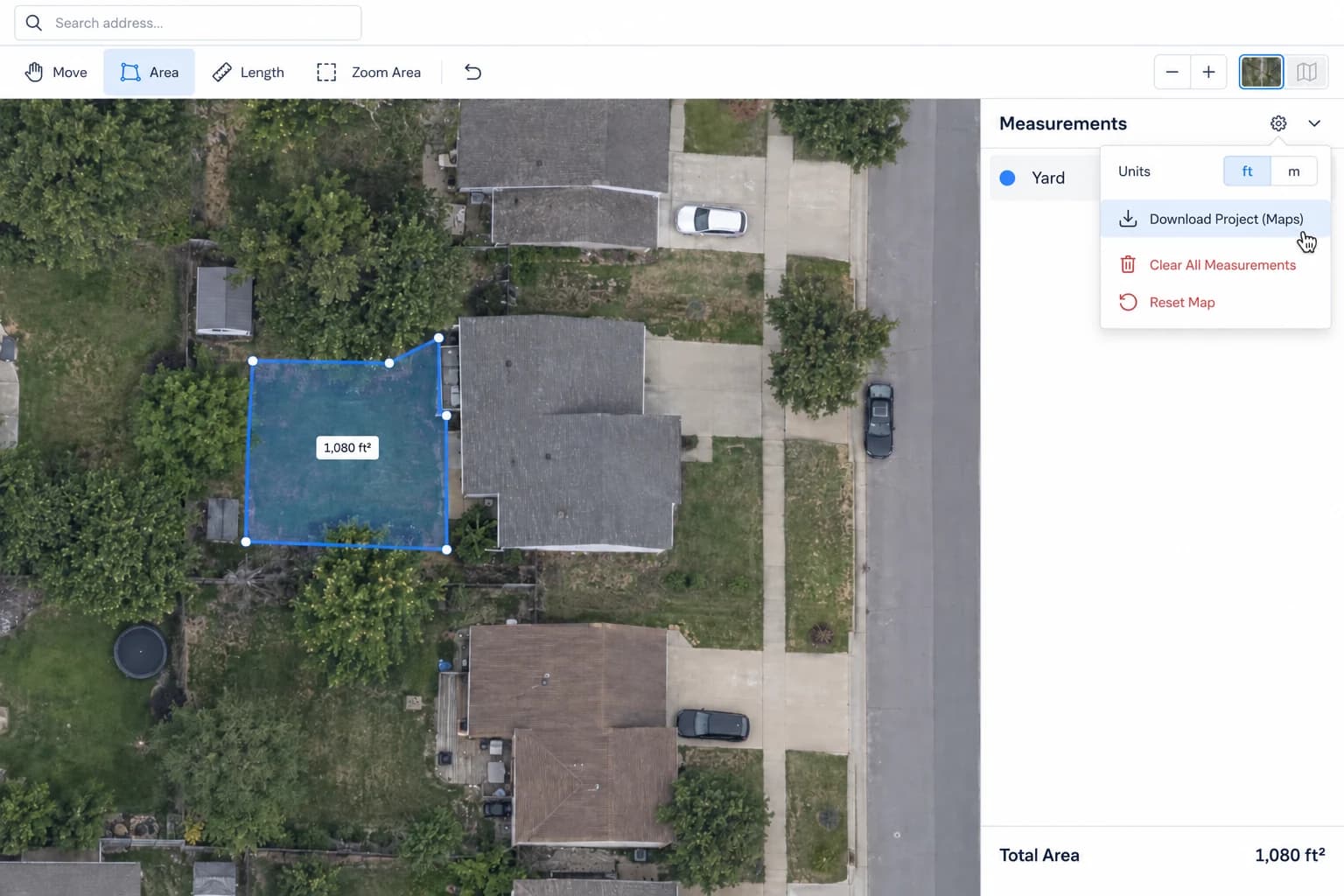
Area Sketcher is now Areaplane. Same tool, same features, new name and new home.
If you had saved projects on areasketcher.com, here's how to bring them over.
Step 1: Download Your Projects from Area Sketcher
Your projects were stored in your browser's local storage on areasketcher.com. To retrieve them:
- Visit areasketcher.com/download in the same browser you used before.
- The page will detect any saved floor plan or maps projects.
- Click the download button for each project to save a
.jsonfile to your computer.
Step 2: Import into Areaplane
- Open the Floor Plan Calculator or Maps Calculator on Areaplane.
- Click the Upload button (or drag and drop) and select the
.jsonfile you downloaded. - Your project will load with all measurements, categories, and scale settings intact.
That's it. Your work picks up right where you left off.
Why the move?
Due to naming constraints we needed a new brand. We chose Areaplane because it keeps the spirit of what we do (measuring areas) in a single, clean name.
Nothing about the tool has changed. All features, all calculators, completely the same.
Your Data, Your Device
Areaplane is built around privacy. Your projects are never uploaded to a server. They are saved in your browser's local storage, a private storage area that only you can access. No account or cloud project storage. We use website usage analytics as described in our privacy policy.
Because local storage is tied to a specific domain, projects from areasketcher.com don't appear here automatically. That's why the download and re-import step above is needed.
The same storage is cleared when you clear browsing or site data, and it isn't shared between browsers or devices. Download a project file every so often, especially before a big cleanup, so you always have a copy to re-import.
Our commitment
Today Areaplane is 100% on device: plans never leave your browser. If we ever offer to host and save plans on our servers, existing plans will never be imported automatically. Moving a plan to the server will always be opt-in, one plan at a time, and only when you choose to transfer it.
Check it yourself
You don't have to take our word for it. Cut the connection and keep working:
- Open one of the apps and load a plan or a project.
- Open your browser's developer tools (right-click the page and choose Inspect, or press F12), then open the Network tab.
- Find the throttling menu, which reads No throttling by default, and change it to Offline.
- Keep using the app: trace rooms, measure, save, and reopen your project.
Everything still works, and the Network tab stays empty apart from the page itself, because your files never leave your device. The one exception is satellite imagery: the map app can't fetch new tiles while offline, but your outlines and measurements are untouched.